
A slow or failing computer does not always need to be replaced. Often the right part, installed properly, adds years of useful life. If you are shopping for computer parts in Las Vegas, this guide walks through the upgrades that make the biggest difference, the warning signs that point to a failing component, and how to tell when an upgrade is worth it and when your money is better spent on a different machine.
The Upgrades That Make the Biggest Difference
Not every part upgrade gives you the same return. For most home and office computers, a few changes do the heavy lifting.
Moving from a hard drive to an SSD
If your computer still runs on a traditional spinning hard drive, replacing it with a solid-state drive (SSD) is usually the single most noticeable improvement you can make. Startup, opening programs, searching for files and installing updates all happen much faster. SSDs also have no moving parts, so they handle bumps better in a laptop and run quieter.
Your existing files, programs and settings can usually be copied to the new drive, so the computer looks the same when you get it back, it just responds faster. Before any drive swap, make sure you have a current backup of anything important.
Adding memory
Memory (RAM) is the computer’s short-term workspace. When it fills up, the system starts leaning on the drive to make up the difference, and everything slows down. If you keep many browser tabs open, work in large spreadsheets, or run several programs at once, more memory can help. Whether you can add it depends on the computer: many desktops have open slots, while some thin laptops have memory soldered to the board and cannot be upgraded.
Adding storage
Running out of space causes slowdowns and failed updates. A second internal drive in a desktop, or a larger replacement drive in a laptop, gives you room for photos, video and work files without constantly deleting things.
Power Supplies: The Part People Forget
The power supply converts wall power into the steady voltages every other part depends on. When it starts to fail, the symptoms can look like a dozen other problems:
- The computer shuts off or restarts on its own, especially under load
- It will not turn on at all, or it powers on briefly and then stops
- Clicking, buzzing or a burning smell from the back of the case
- Random crashes that do not match any software problem
Power supplies are also important when you upgrade. Adding a stronger graphics card or more drives raises the power the system needs, and an undersized or worn-out supply can cause instability or damage other parts. Replacing it with a quality unit sized for the system is often a smart move during any larger upgrade. Desktop computers in a hot garage or a dusty room tend to work their power supplies harder, so if your machine lives in a warm spot, it is worth having the fans and supply checked.
Signs a Part Is Failing
Some symptoms point clearly to hardware rather than software:
- Drive problems: clicking or grinding sounds, files that will not open, very long startup times, or warnings about disk errors
- Memory problems: frequent blue screens or freezes, especially at random times
- Overheating: loud fans, shutdowns during heavy use, or a case that feels very hot
- Laptop batteries: a battery that drains quickly, will not charge, or makes the case bulge (stop using a swollen battery and have it looked at right away)
If a drive is making noise or showing errors, back up your data immediately if you still can. If you cannot, stop using the computer and get help, because continued use can make recovery harder. Vegas Micro handles data recovery as well as drive replacement.
When an Upgrade Beats a Replacement
An upgrade usually makes sense when:
- The computer’s processor and motherboard still handle what you do, and the slowdown comes from a hard drive, low memory or a full disk
- You have one clearly failing part, such as a drive or power supply, and the rest of the machine is healthy
- The computer can run a current, supported version of its operating system
- You like the machine, its screen or keyboard, or it is set up exactly the way your work needs
Pairing a part upgrade with a PC tune-up often gets the most out of an older computer, since clearing out startup clutter and unwanted software removes another common cause of slowness.
When Replacing Makes More Sense
Sometimes the better choice is a different computer:
- The computer is too old to run a supported operating system or the software you need
- Several parts are failing at once, or the motherboard itself has a problem
- The processor is the bottleneck, and no drive or memory upgrade will fix it
- A laptop has soldered memory and storage, leaving little room to upgrade
Replacing does not have to mean buying brand new. Vegas Micro sells tested used computers for sale, desktops and laptops that come with a 1-year warranty, which can be a practical step up from an aging machine. For a deeper look at weighing the two options, see our post on computer repair or replacement.
Buying Computer Parts in Las Vegas: Getting the Right Fit
The hardest part of upgrading is often making sure the new part matches the old system. Drives come in different sizes and connection types, memory has to match the board’s type and speed, and power supplies need the right connectors and enough capacity. Buying the wrong part means another trip and more downtime.
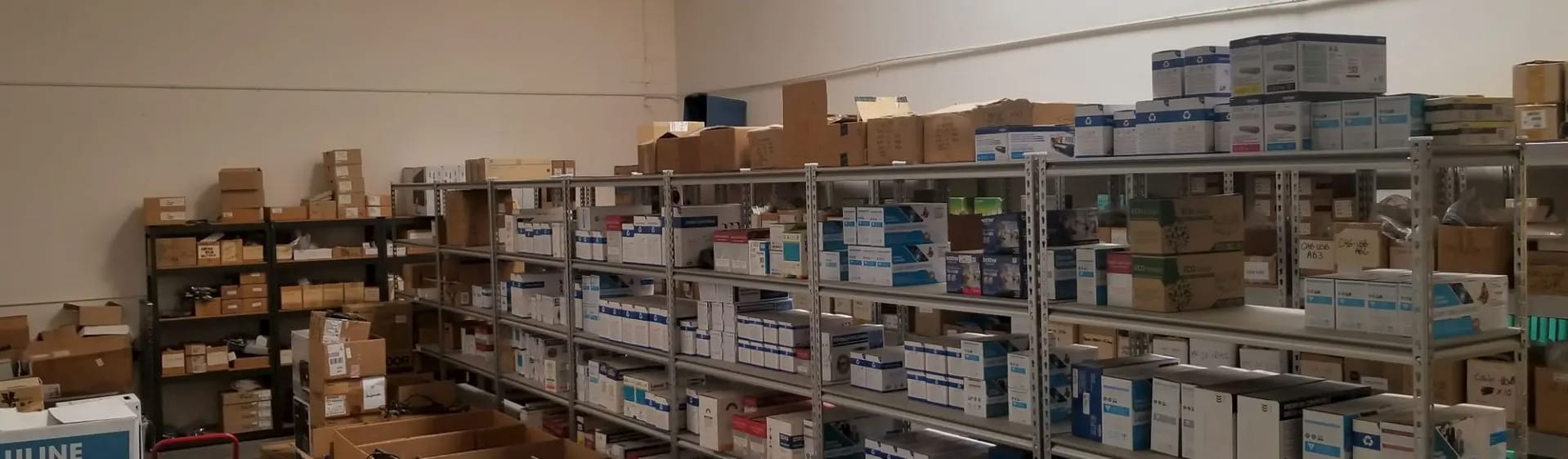
Vegas Micro keeps hundreds of parts in stock at the Warm Springs Road shop, including hard drives, SSDs, power supplies, cables, adapters and routers. Bring the computer in, or bring the model information, and the staff can confirm what fits before you buy. If you would rather not open the case yourself, the shop can install the part, move your data to a new drive, and test everything before you take it home. Repairs are flat-rate, and the shop works on Dell, HP, Lenovo, Apple and custom-built computers. You can see the full list of repair and upgrade services on the website.
If you are thinking about a bigger jump, such as a gaming PC or a workstation built around specific parts, our post on custom-built PCs in Las Vegas explains how a build is planned.
A Few Tips Before You Upgrade
- Back up your files before any hardware change.
- Write down the make and model of your computer, or bring it with you.
- Note what feels slow and when, so the right part gets addressed first.
- Keep your old drive until you have confirmed everything moved over correctly.
Need a hand? Call Vegas Micro at 702-804-6610, email sales@vegasmicro.com, or contact us online.
Related reading: Computer Repair or Replacement? How to Decide in Las Vegas · Custom-Built PCs in Las Vegas: How a Build Is Planned and Supported · Buying a Used Computer in Las Vegas: 7 Things to Check Before You Pay