
Published November 23, 2026
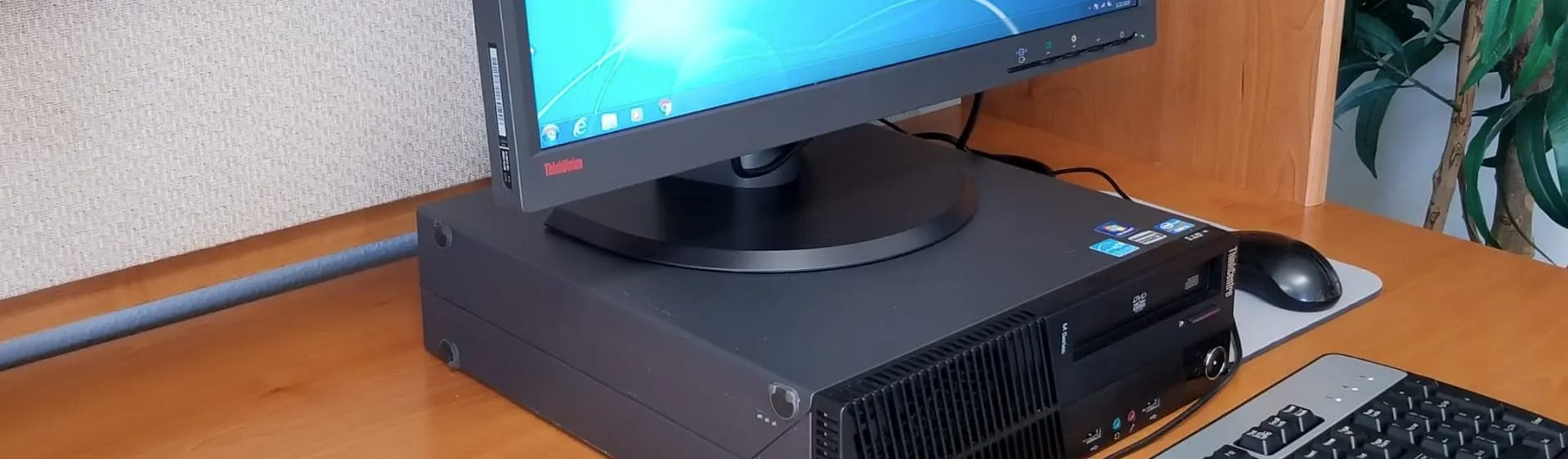
A new computer should make life easier, not leave you hunting for missing photos, lost passwords or an email account that stopped syncing. Switching to a new computer takes a little planning, whether it is a laptop for home or a desktop for a small office in Las Vegas. This guide walks through what to gather before you start, how to transfer files, email and settings safely, and how to wipe the old drive before it leaves your hands.
Before You Start: Take Stock of What You Have
Most transfer problems come from things people forget they had. Before you touch the new machine, spend a few minutes making a list of what lives on the old one:
- Personal files. Documents, photos, music, videos and anything saved to the desktop or the Downloads folder.
- Email. Which accounts you use, and whether the messages live on a mail server or only on this computer.
- Browser data. Bookmarks, saved passwords and any browser extensions you rely on.
- Programs. The software you use, along with license keys or the account you bought it under.
- Printers and devices. Printers, scanners, external drives and anything else that needs a driver.
- Work data. Accounting files, client folders or shared drives that a business depends on.
Also check that you can sign in to the accounts tied to the old computer, such as your Microsoft account or Apple ID. A forgotten password discovered halfway through a move can stall the whole job.
Back Up First, Then Transfer
A transfer is not the same as a backup. Before you copy anything to the new computer, make a full, separate backup of the old one to an external drive or a trusted cloud service. If something goes wrong partway through, or the old machine fails during the move, you still have a complete copy.
Once the backup is done, open a few files from it to make sure they actually work. A backup you have never checked is only a hope. If the old computer is already having trouble starting up, or files will not open, stop and get help before trying again. Repeated attempts on a failing drive can make things worse, and our computer repair services include data recovery for exactly that situation.
How to Transfer Files, Email and Settings to a New Computer
There are a few common ways to move your files, and the right one depends on how much data you have and how comfortable you are with the process.
External drive. Copy your folders from the old computer to an external drive, then copy them onto the new one. It is simple and works between almost any two machines, including moving from Windows to Mac or the other way around.
Cloud storage. If your files already sync to a cloud account, signing in on the new computer can bring many of them across. Confirm everything has finished syncing on the old machine before you rely on it.
Built-in migration tools. Macs include Migration Assistant, which can move files, accounts and many settings from another Mac or a Windows PC. Windows offers backup and restore options tied to your Microsoft account. These tools save time, but they do not catch everything, so check your list afterward.
Email. If your email uses a server-based account, signing in on the new computer usually brings your messages back. If your messages are stored only in a local file on the old machine, that file needs to be found and moved carefully. Businesses that use web and email hosting keep mail on the server, which makes this step much simpler.
Programs. Most software cannot simply be copied over. Reinstall each program on the new computer from the original source and sign in or enter your license key. Some programs need to be deactivated on the old machine first, so check before you wipe it.

Check Everything Before You Retire the Old Computer
Keep the old computer untouched for a little while after the move. Use the new one for normal work and confirm that:
- Your documents, photos and other files open correctly.
- Every email account sends and receives, and older messages are there.
- Bookmarks and saved passwords came across in your browser.
- Your printer, scanner and other devices work.
- Your programs open and are activated.
Only when you are confident nothing is missing should you move on to wiping the old machine.
Wiping the Old Drive the Right Way
Deleting files and emptying the trash does not remove them. That data can often still be recovered. Before you sell, donate, recycle or pass along an old computer, the drive needs to be wiped properly.
On most modern computers, the built-in reset option can erase the drive and reinstall a clean copy of the operating system. Windows includes a reset option that can remove everything and clean the drive, and Macs have their own erase process. Before you do this, sign out of your accounts, such as your Microsoft account or Apple ID, and turn off any device-locking features so the next owner is not blocked.
If the computer held sensitive business or financial records, or if it will not start at all, it may be safer to remove the drive and keep it, or have it wiped by someone with the right tools. If you are not sure the old computer has any life left, our guide to computer repair or replacement can help you decide what to do with it.
Setting Up the New Computer
A few steps at the start help a new machine run well for years:
- Install all operating system updates before you do anything else.
- Make sure security protection is turned on and up to date.
- Remove trial software and programs you will never use.
- Set up an automatic backup now, while everything is fresh.
If the new machine is not brand new, the same steps apply. Vegas Micro also sells tested used computers for sale that come with a 1-year warranty, which can be a sensible choice for a home office or student. Our post on refurbished vs. used vs. new laptops explains the differences.
When to Get Help Moving to a New Computer
Many people can handle the move on their own. It makes sense to ask for help when the old computer will not start, when you are moving years of business files, when email lives in local files, or when several computers in an office need to move at once. Vegas Micro has repaired and sold computers in Las Vegas since 1999, working on Dell, HP, Lenovo, Apple and custom-built PCs and laptops. If you would rather not handle the move yourself, we can help in our shop or with onsite service, and our data recovery service is there if the old drive is failing.
Need a hand? Call Vegas Micro at 702-804-6610, email sales@vegasmicro.com, or contact us online.